Garbage Collector | Wiki | SummitLife | SummitLife
SummitLife guide
Garbage Collector
Prepare a Garbage Truck, collect a full bin route, unload at the depot and get paid. Includes group contributions, controls and troubleshooting.
Category
Economy
Written by
SummitLife Staff
Last updated
September 2026
Garbage Collector is a vehicle job for solo workers or a crew. Follow marked bins, collect trash bags, put them in your assigned Garbage Truck, then unload at the Garbage depot. The group leader finishes the job to pay the contributing workers.
Before you start
Requirement
What to prepare
Employment
Apply for Garbage Collector at Job Center and confirm the outfit change
Uniform
Garbage jacket and black boots, equipped
Vehicle
Buy or rent a Garbage Truck at a Car Dealership, then take it out of a garage
Inventory
Space for one trash bag
Group
Work alone or prepare a job group in Phone > Jobs
Check that every crew member has the correct job and uniform. Keep the truck active in the world before starting; a vehicle that is still stored or impounded cannot serve the shift. Use the Garbage clothing location if you need to replace your job outfit.
Photo to add: the job outfit next to the correct Garbage Truck, with the depot visible.
Controls and work sequence
Action
Control or menu
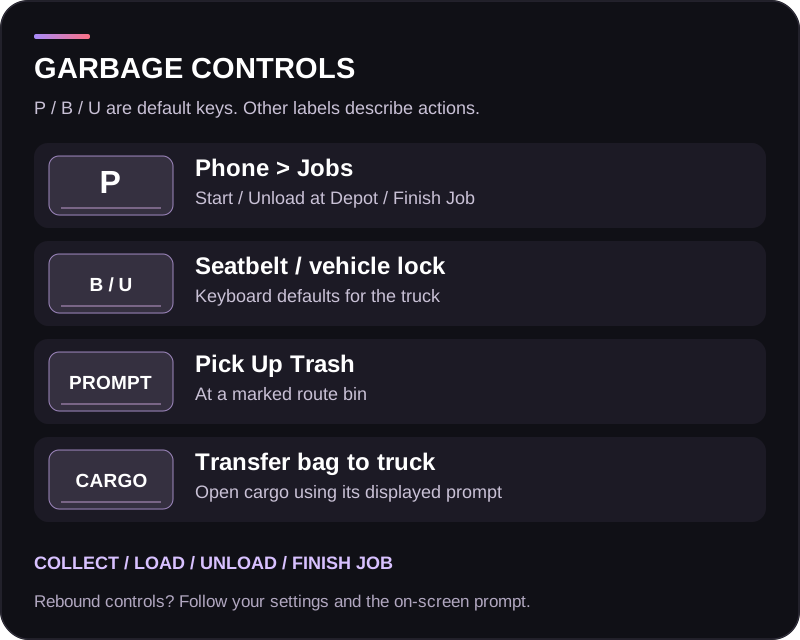
Start the shift
P > Jobs > Start Job: Garbage Collector
Seatbelt
B
Vehicle lock
U, with vehicle access
Collect a bag
Bin interaction: Pick Up Trash
Store the bag
Open truck cargo using its prompt; transfer the bag into the truck inventory
Unload
Phone > Jobs > Unload at Depot, with the truck at the depot
Cash out
Group leader: Phone > Jobs > Finish Job
Keyboard shortcuts are defaults. Use your displayed interaction and inventory bindings when working at bins and truck cargo.
Step 1: start your shift
With the outfit equipped and the truck active, open Phone > Jobs and start Garbage Collector. Solo players receive a job group automatically. In an existing group, the leader starts the shift.
A collection route is assigned when the job starts. The standard starting route is 15 bins. Follow the actual counter on your job screen: route selection supports other sizes, up to 30 bins when enough targets are available.
Step 2: collect marked bins
Drive the assigned truck to a route marker, park nearby and get out. Approach the marked bin, look at it and use Pick Up Trash. The bag goes into your inventory.
You can carry one trash bag at a time. Collecting another requires you to store the one you already have. Use bins assigned to the active route; a random street bin does not replace a marked target.
Photo to add: the route marker above a bin, with Pick Up Trash readable.
Step 3: put the bag in the truck
Walk to the truck's rear and open its cargo inventory. Move the bag from your character inventory into the truck inventory. Check that it actually transferred before returning to the next bin.
Collecting the bag and loading the truck are separate actions. A bag left in a player's inventory is not cargo ready to unload. Keep track of the whole crew's bags, especially after collecting the last bin.
Repeat the pickup-and-store loop until the route's bin counter is complete. Let the driver park close to the work area and coordinate who collects each bin.
Step 4: unload at the depot
Drive the truck back to the Garbage depot. Park the truck inside the depot area, then use Phone > Jobs > Unload at Depot.
The truck must contain bags and be at the depot. Walking to the depot while the truck is elsewhere does not satisfy the unload requirement. The normal full-route workflow is to collect every bin and load the remaining bags before unloading.
Unloading clears the truck cargo. Review the updated job screen before continuing.
Photo to add: a bag transferred into truck cargo, followed by the truck parked at the depot with the unload option visible.
Step 5: get paid or continue
The leader selects Finish Job in the Jobs app to pay the crew, or requests another route to continue working. Completing a bin and seeing an earnings notification records job income; the bank payment happens when the job is finished.
The framework rates checked in September 2026 are:
Payment
Amount
Each successfully collected bin
$300
Completing the route
$500 bonus
Example: 15 bins and completion bonus
$5,000 per contributor
Each contributing worker receives the recorded route amount. Garbage earnings are not divided by the number of workers. A worker registers a contribution by picking up trash; driving, loading for someone else or merely joining the group does not register that pickup. Rotate collection duties so every worker contributes.
These are framework rates, not a guarantee of live server pricing. Check the payslip and bank balance after finishing. Subtract rental, fuel and other expenses when comparing profit.
Your purchased or rented truck stays in the normal vehicle and garage system. There is no depot-return step needed to remove the vehicle for payout, and finishing a shift does not extend a rental.
Troubleshooting
Problem
What to check
Shift will not start
Correct employment and outfit for every member, matching active truck and group leader starting
Cannot collect a bag
Use the marked route bin, stand close and store your existing bag first
Bag is collected but not loaded
Transfer it from character inventory into the assigned truck cargo
Unload is unavailable
Truck at the Garbage depot with bags in its cargo
Bins are finished but guidance still asks for loading
Check whether any member is still carrying a bag
Earnings shown but no bank payment
Leader must select Finish Job
Crew member receives no payout
Check whether that person picked up trash during the shift